Last updated: 22 October 2026
“Bas 5 minute aur.” Then you check the clock and 40 minutes have passed. We have all been there: cooking, studying, working out. Time slips away when nobody is watching it.
A countdown timer online fixes this in the simplest way: you set a time, and it tells you when it’s done. There’s no app to install and no account to create.
How to use the countdown timer online
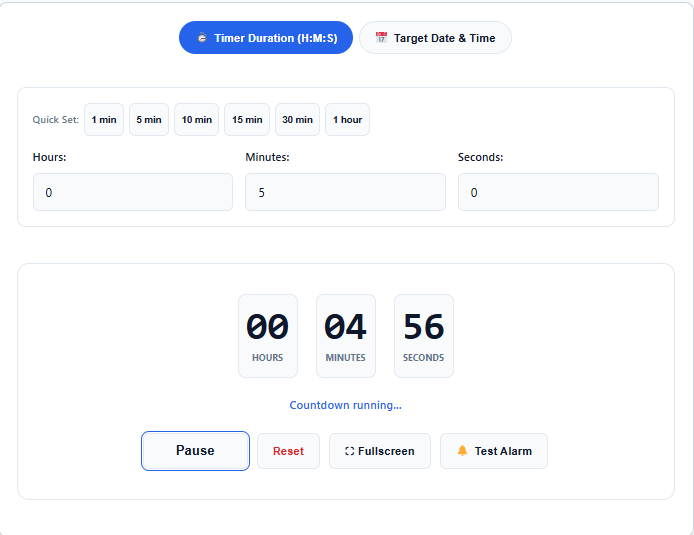
The countdown timer has two tabs at the top.
Timer Duration (H:M:S) is for “this much time from now.” Type the hours, minutes and seconds, or tap a Quick Set button: 1 min, 5 min, 10 min, 15 min, 30 min or 1 hour. Then click Start.
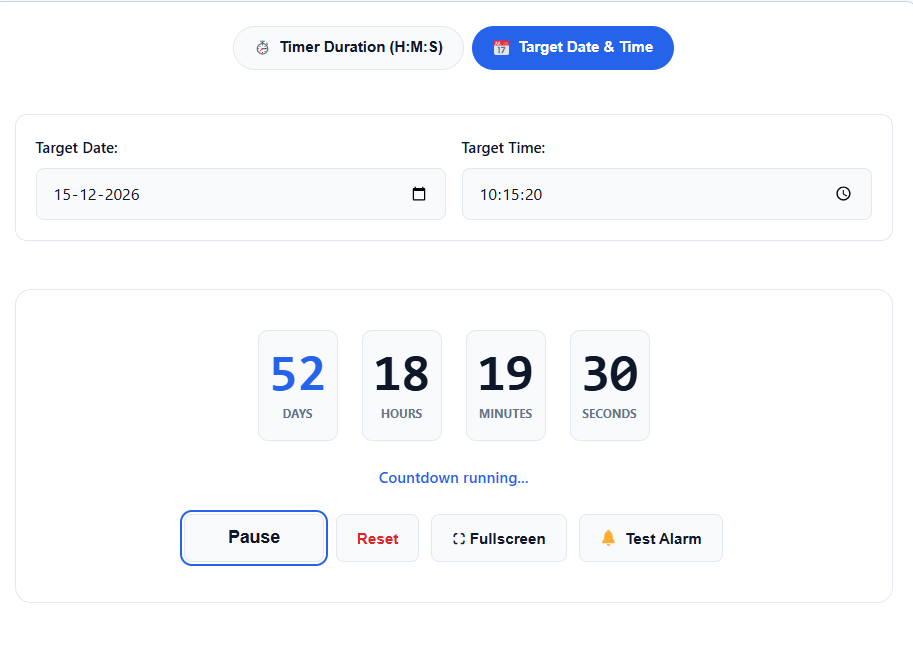
Target Date & Time is for “count down to a specific day.” Pick the date in the calendar, set the hour and minute, and click Start. The display shows the days, hours, minutes and seconds left.
At zero, an alarm sounds and the display shows that time is up. Pause freezes the time that is left, and Resume carries on from there. Reset stops the timer and clears it. Fullscreen expands the display, which helps in a classroom or a presentation.
Click Test Alarm once before you rely on the timer, so you know how loud it is on your device.
Duration or target date: which one to use
They answer different questions:
- Duration means “20 minutes from now.” Use it for cooking, workouts, study sprints, tea and exam practice sections. The clock starts the moment you press Start.
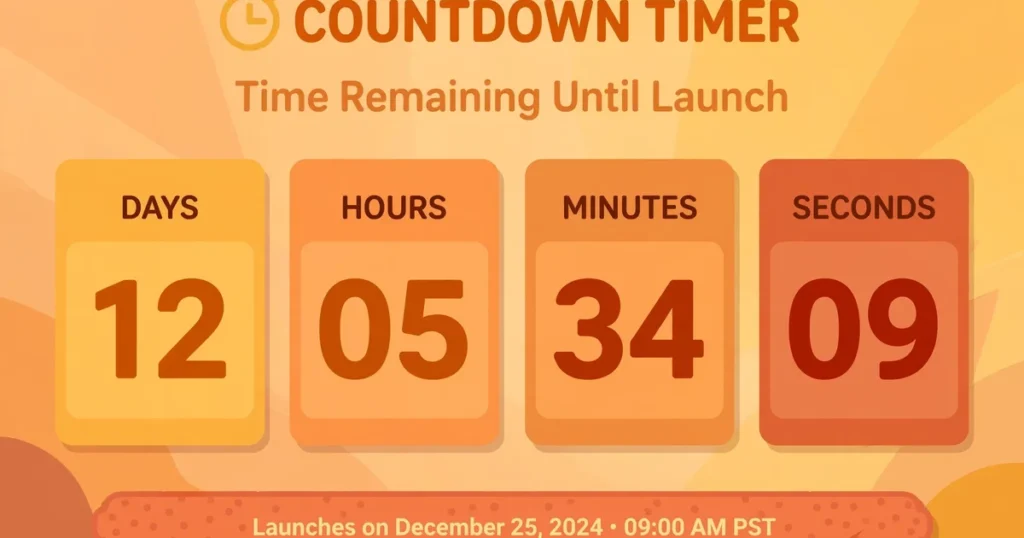
- Target date means “until my exam on 3 December.” Use it for events, deadlines and launches. The clock counts down to a fixed moment.
Short tasks get a duration. Future events get a target date.
The timer counts with your device’s clock, so a wrong clock or time zone gives a wrong countdown.
What happens when you refresh or close the tab
Many online timers reset to zero if you refresh the page or close the tab. This one saves the time it will finish at in your browser’s local storage.
I tested it. I started a 5-minute timer, closed the tab, and opened the page again a minute later. The timer showed about 4 minutes left and kept counting. Refreshing a running timer also kept the same countdown going.
If the time ran out while the page was closed, you see zeros when you open it again. There’s no alarm and no message, so the timer can’t tell you that time ran out while you were away.
The saved time lives in each browser separately. If you start a timer on your phone and open the site on your laptop, the laptop won’t know about it.
Everyday uses
- Exam practice: run a mock test section under a strict limit. Fullscreen mode on a laptop works like an exam hall clock.
- Study sprints: 25 minutes of study, then a 5-minute break. The 25-minute mark isn’t a preset, so type 25 in the minutes box, or use the Pomodoro timer, which is built for this.
- Cooking: 5 minutes for tea, 10 for pasta, 15 for rice. The alarm means you don’t have to keep checking.
- Workouts: 30-second plank holds with 1-minute rests. The 1 min preset gets a lot of use here.
- Classrooms: project the fullscreen timer during a quiz or a presentation, so the whole class sees the same clock.
- Kids’ screen time: set 20 minutes for the tablet. A beep is easier to accept than a parent saying stop.
- Event countdowns: a wedding in 45 days, or a product launch next month. The target date tab shows exactly how long is left.
For the number of days between two dates, use the date difference calculator.
Three mistakes people make with countdown timers
Picking the wrong tab. Counting down to an exam 20 days away in the duration tab means typing 480 hours, and one typo ruins it. Use Target Date & Time for events and Timer Duration for tasks.
Trusting a browser timer for something critical. A browser timer is fine for cooking and studying. To catch a train or take medicine on time, use your phone’s built-in alarm as well. A muted tab won’t make any sound, and browsers can slow down background tabs.
Checking a long countdown on a different device. Your saved timer stays in the browser where you started it. If you start an exam countdown on your laptop and look for it on your phone, you won’t find it. Start it on the device you use every day.
Frequently asked questions
Does the timer keep running if I close the tab?
It resumes from the correct time when you reopen the page, as long as the countdown hasn’t ended. It doesn’t run in the background like a phone alarm. If the time ran out while the page was closed, you see zeros.
Will it work without internet?
Once the page has loaded, the countdown and the alarm don’t need an internet connection. The page needs one to open in the first place, so it isn’t fully offline like a phone’s built-in timer.
Can I set a countdown longer than 24 hours?
Yes. For anything beyond a day, use the Target Date & Time tab. The date picker is simpler than typing a large number of hours.
Does the alarm sound if my tab is muted or in the background?
The alarm plays through your browser’s audio. If the tab is muted, the device volume is off or the browser blocks the sound, you may only see the visual signal. For anything important, keep the volume on and use Test Alarm first.
Can I pause the timer and carry on later?
Yes. Pause freezes the time that is left, and Resume continues from that point. Reset stops the timer and clears it, so use it only when you want to start over.
Is my countdown data sent anywhere?
No. The finish time is stored in your own browser’s local storage, and the countdown runs in your browser.
Author: Kailash Choudhary
Kailash Choudhary runs Mubarak4u.in from Makrana, Rajasthan. He writes practical guides for the site, uses AI tools to help with drafts, and checks the figures before they go live.