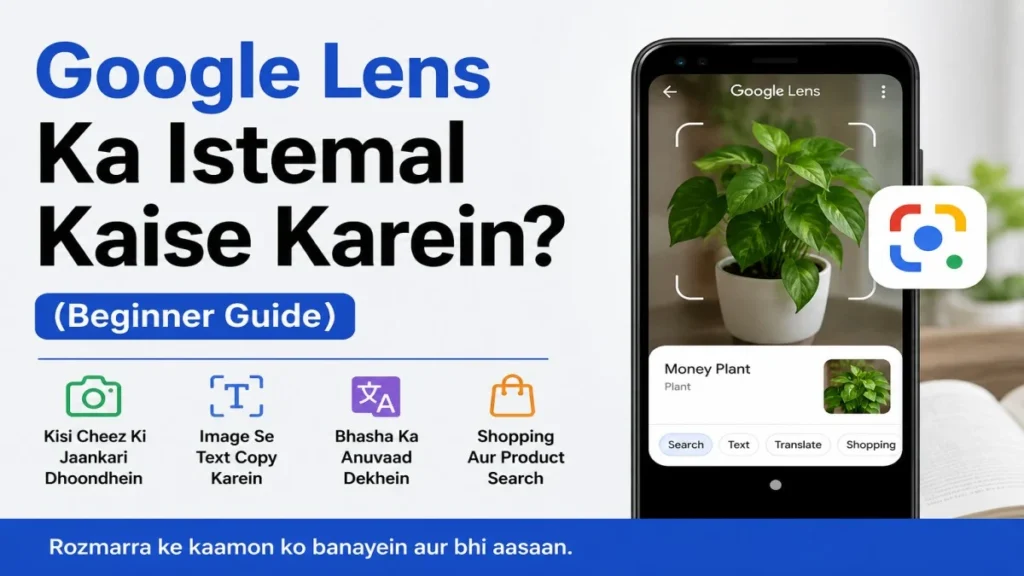
Sometimes you may see a plant, book, piece of clothing or another object and want to know more about it. You may also see text on a sign, poster or document that you cannot understand. Instead of typing everything into Google, you can point your phone camera at it and use Google Lens to search for information.
Google Lens can identify objects, copy text from pictures, translate languages and help you find similar products. In this guide, you will learn how Google Lens works, how to use it and how it can help with everyday tasks.
What Is Google Lens?
Google Lens is a visual search tool from Google that helps you find information using pictures. You can point your phone camera at a plant, animal, book, piece of clothing, sign or other object and see related information. It can also recognise words in pictures, translate text and help you find similar products.
How to Start Using Google Lens
On many phones, Lens is available through the Google app or the camera app. Open it and allow camera access if your phone asks for permission. Point the camera at the object or text you want to check and select the option you need. You can also use a picture that is already saved on your phone.
What Can You Do With Google Lens?
The tool is useful for more than visual searches. You can recognise objects, copy words from pictures, translate text, search for products and find information related to an image. These features can save time when typing or searching manually is difficult.
How to Identify an Object With Google Lens
If you come across a plant, flower, animal, book or piece of clothing that you do not recognise, scan it with your phone. You may see related information, similar images and other search results. This can help you find out more about something even when you do not know its name.
How to Copy Text From a Picture
A photo of a document, poster, book page or sign can be turned into editable text. After scanning the image, select the words you need and copy them. This is useful when you want to move information from a physical page into a message, email or document without typing it yourself.
How to Translate Text With Google Lens
Text on a menu, sign, poster or document can be translated directly from an image. Point your camera at the words or select a saved picture and choose the translation option when available. This can be especially useful while travelling or reading information in an unfamiliar language.
How Can Google Lens Help With Shopping?
Suppose you see a shirt, shoe, bag or another item but do not know what it is called. A quick scan may show similar products and related information. This can help you identify the item and look for similar options online.
How Can Google Lens Help With Study?
Students can use the tool to copy text from books and notes, translate unfamiliar words and look up information from images. It can be useful for quick help while studying, but important facts and answers should still be checked with reliable sources.
What Should You Check Before Trusting a Lens Result?
The information shown by a visual search is not always accurate. A blurry image, similar-looking object or incomplete information can lead to a wrong result. If you are checking something important, such as a medicine, plant or document, confirm the information with a trusted source before relying on it.
Is Google Lens Available on Every Phone?
Lens is available on many Android phones through the Google app or camera app, and some devices have it built directly into the camera. The exact way to access it depends on the phone and its software. If you cannot find the feature, check the Google app and your phone’s camera settings.
Does Google Lens Work Without the Internet?
Many features need an internet connection because they use online services and search results. What works without internet can vary by device, app version and feature. Without a connection, some searches, translations and other results may not be available.
Final Thoughts
Google Lens is a useful tool for searching with pictures instead of typing words. You can use it to identify objects, copy text, translate languages and find similar products. It can save time when you see something you do not recognise or when typing information from a picture would be difficult.
Like any search tool, Lens should not be treated as a perfect source of information. For important questions, check its results with a reliable source before making a decision.
- Related Articles
- How to Use Google Maps the Right Way: Beginner Guide
- Gmail Storage Full Ho Jaaye To Kya Karein? Simple Guide
Frequently Asked Questions About Google Lens
Can Google Lens Be Used Without the Internet?
Many Lens features need an internet connection to provide search results and other online information. Some features may work differently depending on your phone and app version.
Can I Scan a Photo Saved on My Phone?
Yes. You can select a picture saved on your phone and use Google Lens to search for information, recognise text or use other available Lens features.
Can Google Lens Copy Text From an Image?
Yes. Google Lens can recognise text in many images and let you select and copy it. Depending on the image and available features, you may also be able to translate the text.
Can Google Lens Recognise Everything?
No. Lens can recognise many objects and types of content, but its results are not always accurate. For important information, check the result with another trusted source.
For official information about Google Lens and its features, you can visit the Google Lens Help page.